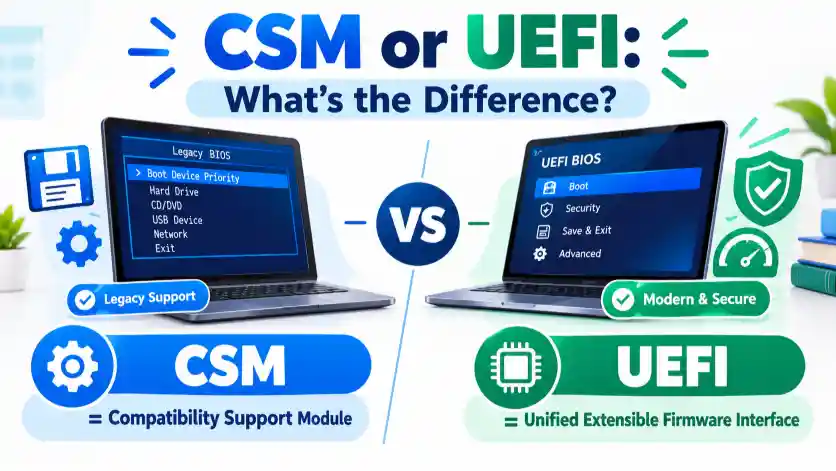
CSM and UEFI are two ways a computer can start its operating system, but UEFI is the modern boot method, while CSM helps support older BIOS based systems and devices. If you are installing Windows, changing BIOS settings, or fixing a boot error, knowing the difference can help you choose the right option.
People often search for CSM or UEFI when setting up a new computer, installing Windows 10 or Windows 11, changing a hard drive, or trying to boot from a USB drive. The two options can look confusing because they appear together in the BIOS or UEFI firmware settings.
The choice matters because the boot mode must match the way your operating system and drive are set up. For example, Windows installed on a drive using the GPT partition style usually boots in UEFI mode. Older systems may use Legacy BIOS with an MBR-partitioned drive.
UEFI is generally the right choice for modern computers, especially those running Windows 11. However, CSM may be needed for certain older operating systems, bootable devices, or hardware.
This guide explains what CSM and UEFI mean, how they differ, which one to use, and what mistakes to avoid before changing your computer’s boot settings.
CSM or UEFI : Quick Answer
Choose UEFI for most modern computers. Choose CSM only when you need support for older boot methods or devices.
- CSM: Supports legacy BIOS booting on compatible computers.
- UEFI: Uses a modern firmware interface to start an operating system.
- Windows 11: Normally requires UEFI firmware support and Secure Boot capability.
- Older operating systems: May need CSM or Legacy BIOS, depending on the system.
- GPT drives: Commonly used with UEFI booting.
- MBR drives: Commonly used with Legacy BIOS or CSM booting.
For example, if you are installing Windows 11 on a modern computer, UEFI is usually the correct setting. If an older operating system will not boot in UEFI mode, CSM may help if the computer supports it.
Important: Do not change the boot mode without checking your current Windows installation and drive partition style. Switching modes can make an existing operating system temporarily unbootable.
Definition and Meaning of CSM or UEFI
What Is CSM?
CSM stands for Compatibility Support Module. It is a feature in some UEFI firmware that allows a computer to use older BIOS-style boot methods.
Traditional computers used BIOS firmware to start the operating system. As computers moved to UEFI, CSM provided a way to keep supporting older operating systems, boot devices, and hardware.
In simple terms, CSM helps newer firmware work with older boot technology.
For example, an older operating system installed on an MBR-partitioned drive may require Legacy BIOS booting. On a computer with compatible firmware, enabling CSM may allow that system to start.
However, CSM is not available on every modern computer. Some newer systems have removed it completely.
What Is UEFI?
UEFI stands for Unified Extensible Firmware Interface. It is a modern standard that defines how firmware starts an operating system and communicates with certain hardware and software components.
UEFI replaced many limitations of traditional BIOS booting. It supports features such as Secure Boot, GPT partitioning, and modern boot management.
In simple terms, UEFI is the modern system used to start your computer before the operating system loads.
For example, a Windows 11 computer normally uses UEFI booting with a compatible system drive. This setup supports modern security features and large storage devices.
What Is the Main Difference Between CSM and UEFI?
The main difference is how the computer starts its operating system.
- CSM provides compatibility with older BIOS-style booting.
- UEFI supports modern boot methods and firmware features.
CSM is not a completely separate firmware standard. It is a compatibility feature within some UEFI implementations.
Also, CSM and UEFI are not always two equal, independent choices. When CSM is enabled, a computer may support both legacy and UEFI boot devices. When CSM is disabled, the computer generally uses native UEFI booting.
The Origin of CSM and UEFI
The History of CSM
CSM was introduced to help computers using UEFI firmware continue supporting older software and boot devices designed for traditional BIOS systems.
As manufacturers adopted UEFI, some users still needed to run older operating systems or boot from older storage devices. The Compatibility Support Module helped bridge that gap.
The name describes its purpose: providing a compatibility layer for legacy booting.
The History of UEFI
UEFI developed from Intel’s work on the Extensible Firmware Interface (EFI) in the 1990s. The industry later adopted a shared specification under the name Unified Extensible Firmware Interface.
UEFI became widely used as computers moved toward modern operating systems, larger storage devices, and stronger boot security.
Today, most new Windows computers use UEFI rather than relying on traditional BIOS booting.
Why Are CSM and UEFI Written Differently?
CSM and UEFI are acronyms, not alternative spellings of the same word. Each represents a different technical term.
- CSM means Compatibility Support Module.
- UEFI means Unified Extensible Firmware Interface.
You may also see terms such as Legacy Boot, Legacy BIOS, and UEFI Boot in computer settings. These labels describe related boot methods or firmware options, but they are not interchangeable in every context.
British English vs American English Spelling
Is There a British or American Difference?
No. CSM and UEFI are written the same way in British and American English. They are technical acronyms, so their spelling does not change between the two varieties.
The terms are also used internationally in computer manuals, operating system guides, firmware menus, and technical support articles.
CSM vs UEFI in British and American English
| Feature | British English | American English |
| CSM spelling | CSM | CSM |
| UEFI spelling | UEFI | UEFI |
| Full form of CSM | Compatibility Support Module | Compatibility Support Module |
| Full form of UEFI | Unified Extensible Firmware Interface | Unified Extensible Firmware Interface |
| Common setting | UEFI or Legacy/CSM | UEFI or Legacy/CSM |
| Spelling difference | None | None |
Which Terms May Look Different?
Computer guides sometimes use different labels for the same general setting.
For example:
- Legacy Boot: Often refers to older BIOS-style booting.
- UEFI Boot: Refers to native UEFI booting.
- CSM Support: Usually means that legacy boot compatibility is available.
- Secure Boot: A security feature associated with UEFI booting.
These labels may vary by computer manufacturer, but the technical acronyms themselves remain unchanged.
Which Boot Mode Should You Use?
Use UEFI for Modern Windows Computers
UEFI is generally the recommended choice for modern computers because it supports current boot methods and security features.
Choose UEFI when:
- You are installing Windows 11 on a compatible computer.
- Your Windows installation uses GPT partitioning.
- You want to use Secure Boot.
- Your computer and operating system support native UEFI booting.
- You are setting up a new computer or a new system drive.
For most new Windows installations, UEFI is the sensible default.
Use CSM for Older Systems
CSM may be useful if you need to start an older operating system or use a boot device that only supports legacy BIOS booting.
Consider CSM when:
- An older operating system requires Legacy BIOS mode.
- You have an older bootable USB drive.
- An older expansion card or device requires legacy boot support.
- Your existing Windows installation was configured for Legacy BIOS and MBR.
Before enabling CSM, check the computer manufacturer’s instructions. Some newer systems do not offer this feature.
What About Windows 10 and Windows 11?
Windows 10 can be installed in either UEFI or Legacy BIOS mode, depending on the computer and installation setup.
Windows 11 has stricter platform requirements. Its standard supported configuration requires UEFI firmware with Secure Boot capability, along with other requirements such as TPM 2.0.
| Situation | Recommended approach |
| New Windows 11 installation | UEFI |
| Windows 10 on a modern GPT drive | UEFI |
| Older Windows installation on MBR | Check the existing boot mode before changing it |
| Older operating system requiring BIOS boot | CSM, if supported |
| Secure Boot needed | Native UEFI without CSM in typical configurations |
| New computer with no CSM option | Use UEFI |
Check Your Current Boot Mode Before Changing It
On Windows, you can check your current setup without changing any firmware settings.
- Press Windows + R.
- Type msinfo32.
- Press Enter.
- Find BIOS Mode in the System Information window.
The result usually shows UEFI or Legacy.
To check your drive’s partition style:
- Right-click the Start button.
- Open Disk Management.
- Right-click the relevant disk label, such as Disk 0.
- Select Properties.
- Open the Volumes tab.
- Find Partition style.
It will usually show GUID Partition Table (GPT) or Master Boot Record (MBR).
These checks help you understand your current setup before you make changes.
Common Mistakes with CSM or UEFI
Mistake 1: Assuming CSM Is a Separate Modern Firmware Standard
CSM is a compatibility feature within some UEFI firmware. It helps support older BIOS-style booting.
Correct approach: Understand CSM as a legacy compatibility option, not a replacement for UEFI itself.
Mistake 2: Switching to UEFI Without Checking the Drive
An existing Windows installation may use MBR partitioning and Legacy BIOS booting. Simply switching the firmware to UEFI can prevent Windows from starting.
Correct approach: Check the partition style and current BIOS mode first. If needed, plan a supported conversion or reinstall.
Mistake 3: Enabling CSM to Fix Every USB Boot Problem
A USB drive may fail to boot because it was created incorrectly, uses an unsupported file system, or contains files that do not match the selected boot mode.
Correct approach: Check the USB creation method and select the correct boot entry. A USB drive may appear twice in the boot menu, once as UEFI and once as a legacy device.
Mistake 4: Thinking CSM Makes a Computer Faster
CSM is designed for compatibility, not performance improvement.
Correct approach: Choose a boot mode that matches your operating system and hardware. Do not expect a major speed increase simply from changing the setting.
Mistake 5: Assuming UEFI Always Means Secure Boot Is Enabled
UEFI supports Secure Boot, but support and actual configuration are different things.
Correct approach: Check the Secure Boot setting separately in your firmware and confirm that your operating system supports the required configuration.
Mistake 6: Disabling CSM Without Checking Older Devices
Some older graphics cards, operating systems, and boot devices may depend on legacy support.
Correct approach: Check hardware compatibility before disabling CSM, especially when working with an older computer.
CSM or UEFI in Everyday Examples
Example 1: Installing Windows 11
You have a new computer and want to install Windows 11 from a USB drive.
Recommended choice: UEFI.
Use a compatible installation USB and ensure the system meets Windows 11 requirements. Native UEFI booting is the normal configuration for a supported installation.
Example 2: Starting an Older Operating System
You have an older operating system installed on an MBR drive, and it will not start after changing firmware settings.
Possible solution: Restore the previous Legacy/CSM boot configuration if your computer supports it.
Do not format the drive or change partition settings without understanding the consequences.
Example 3: Booting from a USB Drive
Your boot menu lists the same USB drive twice:
- UEFI: USB Drive
- USB Drive
The first entry usually starts the USB in UEFI mode. The second may start it through legacy booting.
Choose the entry that matches your installation or recovery needs.
Example 4: Turning On Secure Boot
You want to enable Secure Boot for a supported Windows installation.
The computer may require native UEFI booting and may not allow Secure Boot while CSM is active.
Recommended approach: Check the manufacturer’s instructions and your current Windows installation before disabling CSM.
Example 5: Writing a Technical Support Email
You could write:
“My computer is set to Legacy mode, but the Windows installer was started in UEFI mode. Can you help me confirm the correct boot configuration?”
This gives the support team useful details about the issue.
CSM or UEFI : Google Trends and Usage Data
Which Term Is More Common?
CSM and UEFI are both used in computer support, but they appear in different contexts.
UEFI is closely linked to modern computer setup, Windows installation, Secure Boot, and GPT drives. CSM is more often discussed when users troubleshoot older hardware, legacy booting, or compatibility problems.
People commonly search for these terms when they:
- Install Windows from a USB drive.
- Change BIOS or firmware settings.
- Fix a computer that will not boot.
- Convert a drive from MBR to GPT.
- Enable Secure Boot.
- Troubleshoot an older computer.
Popularity by Country
Both terms are used worldwide. Their popularity can vary with operating system use, computer hardware, and local search habits.
| Region | Common search context |
| United States | Windows installation and PC troubleshooting |
| United Kingdom | UEFI settings, boot errors, and system setup |
| Canada | Windows recovery and hardware compatibility |
| Australia | Firmware configuration and bootable USB drives |
| Pakistan and India | Windows installation, BIOS settings, and boot problems |
These are general topic patterns, not measured country rankings. Exact search volumes or Google Trends scores would need to be checked for a specific date range and search region.
What Do Search Trends Tell Us?
Interest in CSM and UEFI often rises when people encounter a technical problem. The terms are less likely to be searched as everyday vocabulary because they belong to a specific area of computing.
For useful research, compare these search phrases separately:
- CSM vs UEFI
- UEFI vs Legacy Boot
- CSM support meaning
- UEFI boot mode
- GPT vs MBR
- How to enable Secure Boot
Remember that search interest measures attention, not technical quality. The fact that one term receives more searches does not mean it is the right setting for every computer.
CSM vs UEFI : Comparison Table
The following table summarizes the main differences.
| Feature | CSM | UEFI |
| Full form | Compatibility Support Module | Unified Extensible Firmware Interface |
| Main purpose | Supports legacy BIOS-style booting | Provides modern firmware booting |
| Technology | Compatibility feature within some UEFI firmware | Modern firmware interface standard |
| Typical use | Older operating systems and boot devices | Modern operating systems and devices |
| GPT support | Depends on the boot method; legacy boot normally uses MBR | Commonly used with GPT |
| MBR support | Common with Legacy BIOS booting | Some systems support MBR with UEFI, but compatibility varies |
| Secure Boot | Typically unavailable while CSM is active | Supports Secure Boot on compatible systems |
| Windows 11 | Not the standard supported boot configuration | Standard supported boot mode |
| Availability | Missing from some newer computers | Common on modern computers |
| Best use | Specific legacy compatibility needs | Most modern PC installations |
Key takeaway: UEFI is the modern boot method. CSM exists to preserve compatibility with older boot technology. Your operating system, drive format, and hardware determine which configuration will work.
FAQs About CSM or UEFI
1. Is UEFI better than CSM?
UEFI is generally the better choice for modern computers because it supports current operating systems, GPT booting, and features such as Secure Boot. CSM remains useful when older software or hardware requires legacy booting.
2. Should I enable or disable CSM?
For a modern Windows installation, disabling CSM and using native UEFI booting is usually appropriate. However, check your current Windows boot mode before changing this setting. An existing Legacy/MBR installation may stop booting if you switch modes without preparation.
3. Does Windows 11 require UEFI?
Windows 11’s standard system requirements call for UEFI firmware that supports Secure Boot. A supported installation should use the appropriate UEFI configuration and meet the other hardware requirements, including TPM 2.0.
4. Can I switch from CSM to UEFI without reinstalling Windows?
Sometimes. If Windows is installed on an MBR drive using Legacy booting, you may be able to convert the system disk to GPT with Microsoft’s supported conversion tool, mbr2gpt.exe, when its requirements are met.
Back up important files before making changes. Verify that the conversion is supported and change the firmware boot mode only when the system is ready for UEFI booting.
5. Does UEFI make a computer boot faster?
UEFI can support efficient startup features, but the actual boot time depends on the hardware, firmware, operating system, and startup configuration. Switching modes alone does not guarantee a noticeable speed improvement.
6. Can I install Windows with CSM enabled?
It may be possible to install certain Windows versions using Legacy BIOS booting when the computer supports CSM. However, UEFI is the recommended approach for a standard supported Windows 11 installation.
7. Why is CSM missing from my BIOS settings?
Some newer computers no longer include CSM because they are designed for native UEFI booting. A firmware update or manufacturer-specific setting may also affect the available options. Check your computer’s official documentation before looking for workarounds.
Conclusion: CSM or UEFI?
Choosing between CSM and UEFI depends on your computer, operating system, and storage setup. However, UEFI is the recommended choice for most modern computers, especially those running Windows 11.
CSM stands for Compatibility Support Module. It helps some UEFI systems support older BIOS-style booting. This can be useful when working with older operating systems, MBR-partitioned drives, or legacy boot devices.
UEFI stands for Unified Extensible Firmware Interface. It supports modern boot methods, works commonly with GPT drives, and provides access to features such as Secure Boot on compatible systems.
Before changing your firmware settings, check your current boot mode and disk partition style. A computer using Legacy booting may not start correctly if you switch directly to UEFI without preparing the system.
For a new Windows installation, use UEFI whenever your hardware and operating system support it. Choose CSM only when a specific compatibility need requires legacy booting.
The simplest rule is this: use UEFI for modern systems and CSM for supported legacy needs. Making the correct choice helps your computer boot properly and keeps your system configuration compatible with its hardware and operating system.
Read More:
- Suica vs. PASMO: 7 Key Differences Every Traveler Should Know
- Domestic or International: What’s the Difference?
- Master’s or Bachelor’s: The Decision That Shapes Your Career