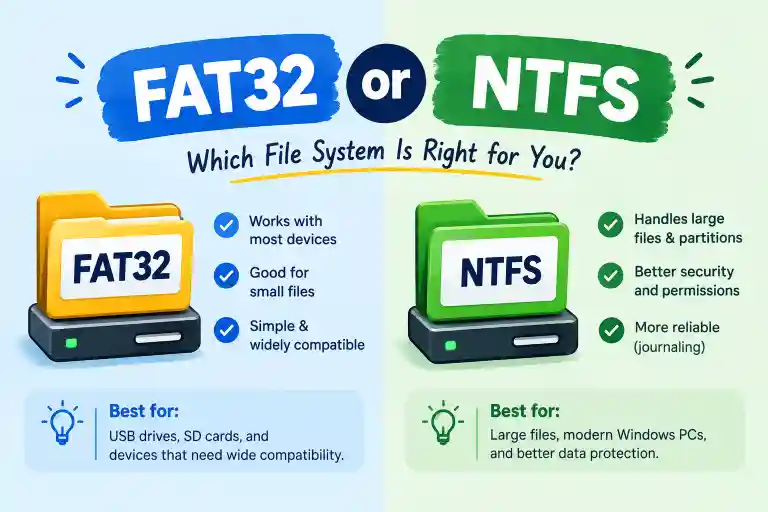
FAT32 or NTFS refers to two common file systems used for formatting drives, each suited to different needs based on compatibility, security, and file size limits.
NTFS is generally the better choice for Windows internal drives, while FAT32 remains useful for older devices, bootable media, and situations where broad compatibility matters more than file size or security features.
People often search “FAT32 or NTFS” when formatting a USB drive, external hard drive, memory card, or Windows storage device, since the two look similar at first glance.
However, they have important differences in maximum file size, partition size, security, reliability, and everyday compatibility across devices.
In this guide, we’ll compare FAT32 vs NTFS in simple terms so you can choose the right file system for your particular device.
FAT32 or NTFS: Quick Answer
Choose NTFS for Windows internal drives and most Windows-only storage. Choose FAT32 when compatibility with older devices, game consoles, cameras, or other operating systems is more important.
The biggest practical difference is the 4 GB maximum individual file size of FAT32. NTFS does not have this same 4 GB limitation and provides features such as file permissions, journaling, encryption support, and improved reliability.
Simple Rule
Windows drive = NTFS
Older or widely compatible device = FAT32
However, there are situations where exFAT may actually be a better choice than either one, particularly for modern USB drives and external storage shared between different operating systems.
What Is FAT32?
FAT32 stands for File Allocation Table 32. It is an older file system developed as an improvement over previous FAT versions.
FAT32 became popular because it works with a wide range of operating systems and electronic devices.
You may still encounter FAT32 on:
- USB flash drives
- Memory cards
- Older cameras
- Older gaming devices
- Bootable USB drives
- Older computers
- Devices requiring broad compatibility
One of FAT32’s biggest advantages is its compatibility.
A FAT32 drive can be recognized by many Windows, macOS, Linux, and consumer electronics devices.
The biggest FAT32 limitation
FAT32 cannot store a single file larger than 4 GB.
For example, if you have a 7 GB video file, you cannot copy that file directly to a FAT32-formatted drive.
This limitation is one of the main reasons people choose NTFS or exFAT instead.
What Is NTFS?
NTFS stands for New Technology File System.
Microsoft introduced NTFS for Windows systems, and it has become the standard file system for modern Windows installations.
NTFS is designed for reliability, security, and large storage devices.
It supports features such as:
- Large files
- Large volumes
- File and folder permissions
- Journaling
- File compression
- Encryption-related features
- Advanced Windows security
- Better recovery after certain system failures
A normal Windows internal hard drive or SSD is typically formatted using NTFS.
If you install Windows on a modern PC, NTFS is the standard choice for the Windows system partition.
FAT32 vs NTFS: Main Differences
| Feature | FAT32 | NTFS |
| Age | Older | Newer |
| Maximum individual file size | About 4 GB | Much larger |
| Windows system drive | Not recommended | Yes |
| Security permissions | Limited | Yes |
| Journaling | No | Yes |
| Windows compatibility | Excellent | Excellent |
| Cross-platform compatibility | Very broad | More limited |
| Large video files | Problematic above 4 GB | Suitable |
| USB compatibility | Excellent | Good |
| External Windows drive | Possible | Excellent |
| Older devices | Often preferred | May not be supported |
| File compression | No built-in NTFS compression | Yes |
| Reliability features | Basic | Advanced |
FAT32 or NTFS: File Size Limit
The 4 GB file limit is probably the most important difference for everyday users.
Suppose you have a 10 GB movie and want to copy it to a USB drive.
FAT32
You will receive an error because the individual file is larger than approximately 4 GB.
NTFS
The file can be stored without the FAT32 4 GB restriction.
This is particularly important for:
- 4K videos
- Large software installers
- Disk images
- Game files
- Backup files
- Large project files
- Virtual machine files
If you regularly work with files larger than 4 GB, FAT32 is usually not the appropriate choice.
FAT32 or NTFS for a USB Drive?
This depends on what you will connect the USB drive to.
Choose FAT32 if:
- You need maximum compatibility.
- You are using an older device.
- The device specifically requires FAT32.
- Your individual files are smaller than 4 GB.
- You need compatibility with various consumer electronics.
Choose NTFS if:
- You mainly use Windows.
- You store large files.
- You want Windows security features.
- You need better support for large storage.
- The USB drive will primarily stay connected to Windows computers.
What about exFAT?
For a modern USB flash drive or external drive that needs to work between Windows and macOS, exFAT can often be a better middle ground.
It avoids FAT32’s 4 GB individual-file limitation while maintaining broad compatibility.
FAT32 or NTFS for an External Hard Drive?
For an external hard drive used primarily with Windows, NTFS is generally the practical choice.
For example, imagine you have a 1 TB external hard drive and use it for:
- Windows backups
- Movies
- Software
- Large documents
- Games
- Photos
NTFS allows you to store large individual files without FAT32’s 4 GB restriction.
However, if the same drive will frequently move between Windows, macOS, gaming devices, televisions, cameras, and other hardware, compatibility should be checked before selecting NTFS.
FAT32 or NTFS for Windows?
For a Windows installation, NTFS is the standard choice.
Windows requires features that are better supported by NTFS, including advanced file-system capabilities and Windows security features.
Your Windows system drive is normally formatted as NTFS.
Example
If your computer has:
C: Drive → Windows
NTFS is the appropriate file system.
If you are formatting an internal Windows SSD or HDD for normal Windows use, there is usually little reason to select FAT32.
FAT32 or NTFS for Gaming?
Gaming compatibility depends on the specific console or device.
Some older consoles and devices may expect FAT32, while newer systems may support other file systems.
Before formatting a drive for a gaming console, check that console’s official storage requirements.
This is especially important because choosing NTFS simply because it supports larger files does not guarantee that a particular console will recognize the drive.
Simple rule
For PC gaming → NTFS is generally appropriate.
For consoles → check the console’s supported file systems first.
FAT32 or NTFS for a Bootable USB?
This is one situation where there is no universal answer.
The appropriate file system depends on:
- The operating system
- The boot method
- UEFI or legacy BIOS
- The installation tool
- The size of individual files
- The target computer
For many modern Windows installation scenarios, FAT32 is commonly used for UEFI boot compatibility, but there can be problems if an installation image contains a file larger than FAT32’s approximately 4 GB limit.
Modern installation tools can handle these situations in different ways.
Therefore, if you are creating a bootable Windows USB, follow the requirements of the particular installation tool rather than blindly choosing FAT32 or NTFS.
FAT32 or NTFS: Security
Security is another major difference.
FAT32
FAT32 has relatively basic file-system functionality and does not provide NTFS-style Windows file permissions.
NTFS
NTFS supports advanced Windows permissions and access controls.
For example, Windows can use NTFS permissions to control who can:
- Read a file
- Modify a file
- Execute a file
- Access a folder
This makes NTFS much more suitable for Windows system and business environments.
FAT32 or NTFS: Reliability
NTFS includes journaling and other mechanisms designed to improve file-system reliability.
Journaling helps the file system keep track of certain changes so that it can recover more effectively after unexpected events such as a system crash or power interruption.
FAT32 is a simpler and older file system.
That does not mean every FAT32 drive will fail or become corrupted. It simply has fewer of the advanced reliability mechanisms associated with NTFS.
FAT32 or NTFS for SSD?
For an internal Windows SSD, NTFS is generally the appropriate choice.
For example:
256 GB SSD → NTFS
512 GB SSD → NTFS
1 TB SSD → NTFS
The storage technology itself does not require FAT32.
An SSD can use different file systems, but your operating system and intended use should determine which one you choose.
FAT32 or NTFS for HDD?
For a Windows internal hard disk, NTFS is generally the standard choice.
For example, if you install a secondary 1 TB or 2 TB HDD in a Windows computer and intend to store:
- Documents
- Videos
- Games
- Applications
- Backups
NTFS is usually more suitable than FAT32.
If the HDD needs to be shared with devices that do not support NTFS, another file system such as exFAT may be worth considering.
Common Mistakes When Choosing FAT32 or NTFS
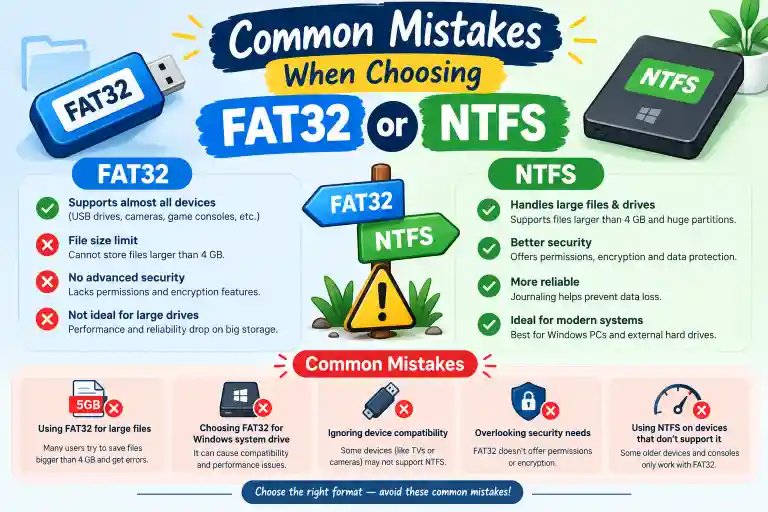
1. Choosing FAT32 for Large Video Files
A common mistake is formatting a large USB drive as FAT32 and then discovering that a 5 GB or 10 GB video cannot be copied.
The problem is not necessarily the storage capacity.
The problem is the individual file-size limit.
2. Thinking a 32 GB FAT32 Drive Can Store Any 32 GB File
The capacity of the drive and the maximum size of one file are different things.
A FAT32 drive may have plenty of free space but still reject a file larger than approximately 4 GB.
3. Using FAT32 for a Windows System Drive
FAT32 is not the normal file system for a modern Windows system installation.
NTFS is designed for Windows system storage.
4. Assuming NTFS Works Everywhere
NTFS works extremely well with Windows, but some devices and operating systems may have limited NTFS support.
Always check compatibility if a storage device will be used with several types of hardware.
5. Ignoring exFAT
Some users think the only choices are FAT32 and NTFS.
For modern removable storage, exFAT can be an important third option.
It combines broad compatibility with support for files much larger than FAT32’s 4 GB limit.
FAT32 vs NTFS: Everyday Examples
Example 1: Windows Laptop
You have a Windows laptop and need to format an internal SSD.
Recommended choice: NTFS
Example 2: 8 GB Movie
You have an 8 GB movie and want to copy it to a USB drive.
FAT32: Not suitable because of the individual file-size limitation.
NTFS: Suitable.
exFAT: Also suitable.
Example 3: Old Camera
Your older camera specifically requires FAT32.
Recommended choice: FAT32
Even though NTFS has more features, compatibility with the camera matters more.
Example 4: USB Used Between Windows and Mac
You want one external drive for both Windows and macOS.
Consider exFAT, assuming your devices support it.
Example 5: Windows Backup Drive
You are using a large external drive mainly for a Windows PC and large backup files.
NTFS is generally a sensible choice.
FAT32 or NTFS: Which One Is Better for You?
Instead of asking which file system is universally better, consider what you are doing with the drive.
| Your Situation | Suitable Choice |
| Windows internal drive | NTFS |
| Windows system drive | NTFS |
| Large files | NTFS or exFAT |
| Older device | FAT32 if required |
| Maximum legacy compatibility | FAT32 |
| Windows-only external drive | NTFS |
| Windows + Mac removable drive | exFAT |
| Large USB files | NTFS or exFAT |
| Device specifically requiring FAT32 | FAT32 |
| Modern bootable media | Depends on boot requirements |
FAT32 or NTFS: Key Takeaways
- FAT32 is an older file system with very broad compatibility.
- NTFS is the standard file system for modern Windows installations.
- FAT32 has an approximately 4 GB maximum individual file-size limitation.
- NTFS supports much larger files.
- NTFS provides advanced Windows security and reliability features.
- FAT32 can be useful for older hardware and devices that specifically require it.
- NTFS is generally appropriate for Windows internal drives.
- exFAT is worth considering for modern removable drives that need cross-platform compatibility.
- Always check the requirements of a camera, console, TV, or other specialized device before formatting its storage.
FAQs About FAT32 or NTFS
Is NTFS better than FAT32?
NTFS offers more advanced features and is generally more suitable for Windows system and large-storage use. FAT32 remains useful when compatibility with older hardware or devices is the priority.
Can FAT32 store a 5 GB file?
No. FAT32 has an individual file-size limit of approximately 4 GB. A 5 GB file therefore cannot be stored as a single file on a FAT32 volume.
Should I use FAT32 or NTFS for Windows?
NTFS is the standard choice for a modern Windows installation and for most internal Windows drives.
Is FAT32 faster than NTFS?
Performance depends on the hardware, workload, and other factors. FAT32’s simpler structure does not automatically mean that it will always be faster than NTFS.
Can I convert FAT32 to NTFS?
Windows provides ways to convert a FAT32 volume to NTFS without the same full-format process normally required when changing to a different file system. However, important data should always be backed up before making file-system changes.
Should a USB drive be FAT32 or NTFS?
If the USB drive is mainly for Windows and will contain large files, NTFS is usually suitable. If compatibility with older devices is more important, FAT32 may be preferable.
Is NTFS compatible with Mac?
Modern macOS systems can generally read NTFS drives, but native write support has traditionally been limited. If you need a removable drive with convenient read/write access across Windows and macOS, exFAT is often worth considering.
What is the main disadvantage of FAT32?
The biggest practical disadvantage is its approximately 4 GB maximum individual file size. It also lacks many advanced features available with NTFS.
What is the main disadvantage of NTFS?
The main disadvantage is compatibility. Some older devices and consumer electronics may not support NTFS, even though Windows supports it very well.
Should I use exFAT instead?
If you are formatting a modern USB flash drive or external drive that needs to work across Windows and macOS and store files larger than 4 GB, exFAT can be a strong alternative to FAT32.
Conclusion
The choice between FAT32 or NTFS depends primarily on compatibility and how you plan to use your storage device.
NTFS is generally the right choice for Windows internal drives, Windows system installations, and storage containing large files. It supports advanced features such as permissions and journaling and does not have FAT32’s approximately 4 GB individual-file restriction.
FAT32 still has a place because of its broad compatibility. Older cameras, gaming devices, computers, and other hardware may specifically require or work better with FAT32.
For modern removable storage shared between Windows and macOS, exFAT is another important option because it avoids FAT32’s 4 GB file limitation while offering broad compatibility.
So the simplest rule is:
Windows system or large Windows storage → NTFS
Older or highly compatible device → FAT32
Modern cross-platform removable storage → Consider exFAT
Read More:
- Kincaid or Goedert: Who Should You Start in 2026
- QQQM or QQQ: Which Nasdaq 100 ETF Fits Your Strategy in 2026
- Pandora or Spotify: The Music App Showdown for 2026